Tour of the app
This tour explains the main Helpin navigation and the places you will use most often.
Workspace switcher
The workspace switcher lets you move between workspaces you belong to. Data, settings, teams, billing, and access are managed separately for each workspace.
Always confirm the current workspace before creating records or changing settings.
Main sidebar
The main sidebar provides access to:
Projects for objectives, epics, tasks, sprints, team views, and My Work.
Support for customer conversations, inboxes, AI handling, and coverage gaps.
Docs for spaces, collections, documents, and public help center content.
CRM for contacts, companies, deals, pipelines, and related activity.
Automation for agents, flows, activity, triggers, tools, and skills.
Settings for workspace and module configuration.
Setup for guided setup and operational checks when available.
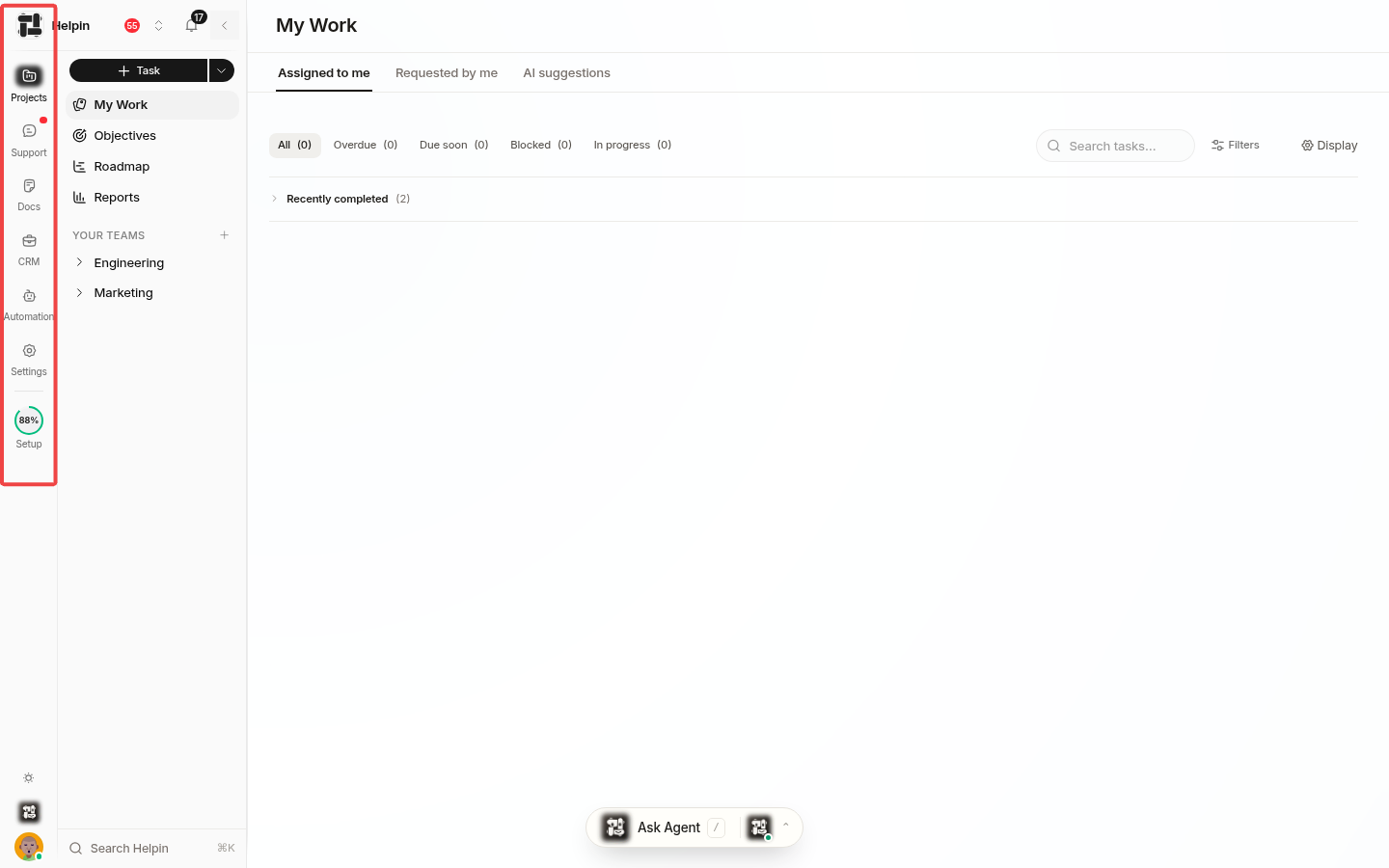
Projects and Docs are available to every workspace member. CRM, Support, and Automation appear according to module access, except that owners and admins always have every module.
Projects and My Work
Open Projects to browse team delivery work. My Work focuses on tasks assigned to you and tasks you requested. Visibility also depends on your workspace role and team membership.
Support
Support is organized around inbox navigation, a conversation list, and the selected conversation. Conversation details can include the customer, assignment, inbox, tags, linked tasks, CRM records, and knowledge.
Built-in views can include Inbox, Mine, Waiting, Resolved, Spam, AI Handling, AI Resolved, and Coverage Gaps. The exact views available depend on workspace configuration and permissions.
Docs
Open Docs to browse spaces and collections, search documents, and access recent or personal work. Space visibility can be workspace-wide or limited to selected teams. External-capable spaces can publish help center content.
CRM
CRM contains contacts, companies, and deals. Pipelines organize deal stages. Related activities and links connect CRM records to customer conversations, tasks, and documents.
Automation and Ask Agents
Automation contains reusable agents and flows. The Ask Agents surface lets you start or continue agent work from the current context. A run can read context, use configured tools, and request approval when required.
AI availability depends on plan entitlements, module access, permissions, configuration, and AI usage.
Search, notifications, and commands
Use workspace search to find accessible records. Module pages can also provide their own searches and filters. The command bar offers fast navigation and actions where supported.
Notifications are available from the top-level navigation. What you receive depends on the records you follow, your notification settings, and your access.
Settings
Settings are grouped by scope. Common areas include:
Members for invitations, roles, teams, module access, and security status.
Teams for membership and team configuration.
Module access for CRM, Support, and Automation grants.
Billing for the current plan, AI usage, extra AI usage, and billing management.
Inboxes & routing and Chat widget for Support channels.
Help center for public Docs branding, domain, navigation, and localization.
AI & knowledge and Integration for connected services and AI configuration.
Settings links are shown only when the current person has the required access.
Next steps
Was this article helpful?