Invite team members
Invite people after you have created the teams they will join and decided which optional modules they need. Workspace owners and admins can manage members and invitations.
Before you invite
For each person, decide:
Their workspace role.
The teams they should join.
Whether they need CRM, Support, or Automation.
Projects and Docs are available to every workspace member.
Choose a workspace role
Role | Use it for |
|---|---|
Viewer | People who need read-only access to allowed work. |
Member | Most teammates who create and update work. |
Admin | People who manage workspace settings, access, and operations. |
Owner | People who need full workspace control, including owner-only actions. |
The invitation dialog offers Workspace admin, Workspace member, and Workspace viewer. Ownership is managed separately.
A Member can also be promoted to Team Manager for a specific team. Team Manager is not a separate workspace role.
Send invitations
Open Settings → Members.
Select Invite Member.
Enter one or more email addresses.
Choose the workspace role.
Select the initial teams.
Review the choices and select Send Invites.
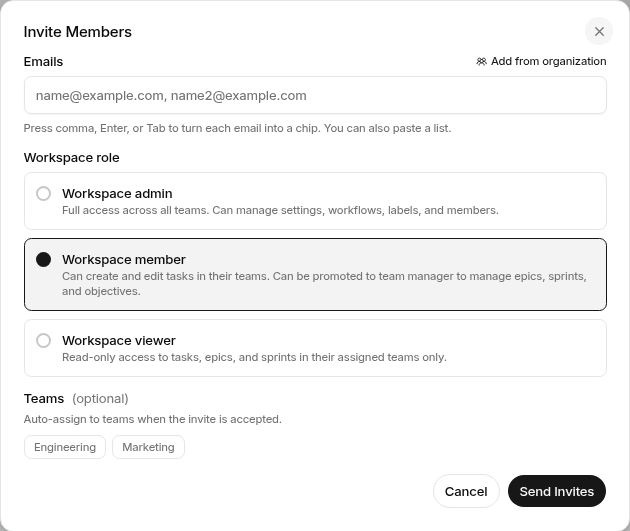
The invitation remains pending until the person accepts it. If an invitation is sent to the wrong address or no longer applies, manage it from the Members settings page when that action is available.
Grant optional modules
Owners and admins always have every module. Members and viewers need a grant to access CRM, Support, or Automation.
Grant access in either of these ways:
Grant the module to a team so access follows team membership.
Grant the module directly to a person as an exception.
Use team grants for predictable access management. See Module access control.
Add or change team membership
You can add members to teams from the member editor or the team's settings. Team membership affects project visibility, team-owned work, team-only Docs spaces, and optional module access inherited from that team.
Promote a Member to Team Manager only when they should manage that team's settings and planning controls.
Change or remove access
From Settings → Members, authorized admins can update a member's role, teams, and module access. Removing a person from a team also removes optional module access inherited only from that team.
Before removing a member, review work assigned to them and transfer ownership where needed.
Troubleshooting
If an invitation does not arrive, confirm the address and ask the recipient to check spam or filtering.
If a person cannot see CRM, Support, or Automation, review direct and team-based module grants.
If a person can see a module but cannot complete an action, review their role, team membership, and the feature permission.
If the wrong workspace was used, send the invitation from the correct workspace. Membership is workspace-specific.
Next steps
Was this article helpful?