Getting started
Use this guide to move from a new workspace to a useful first workflow. You do not need to configure every module before your team starts.
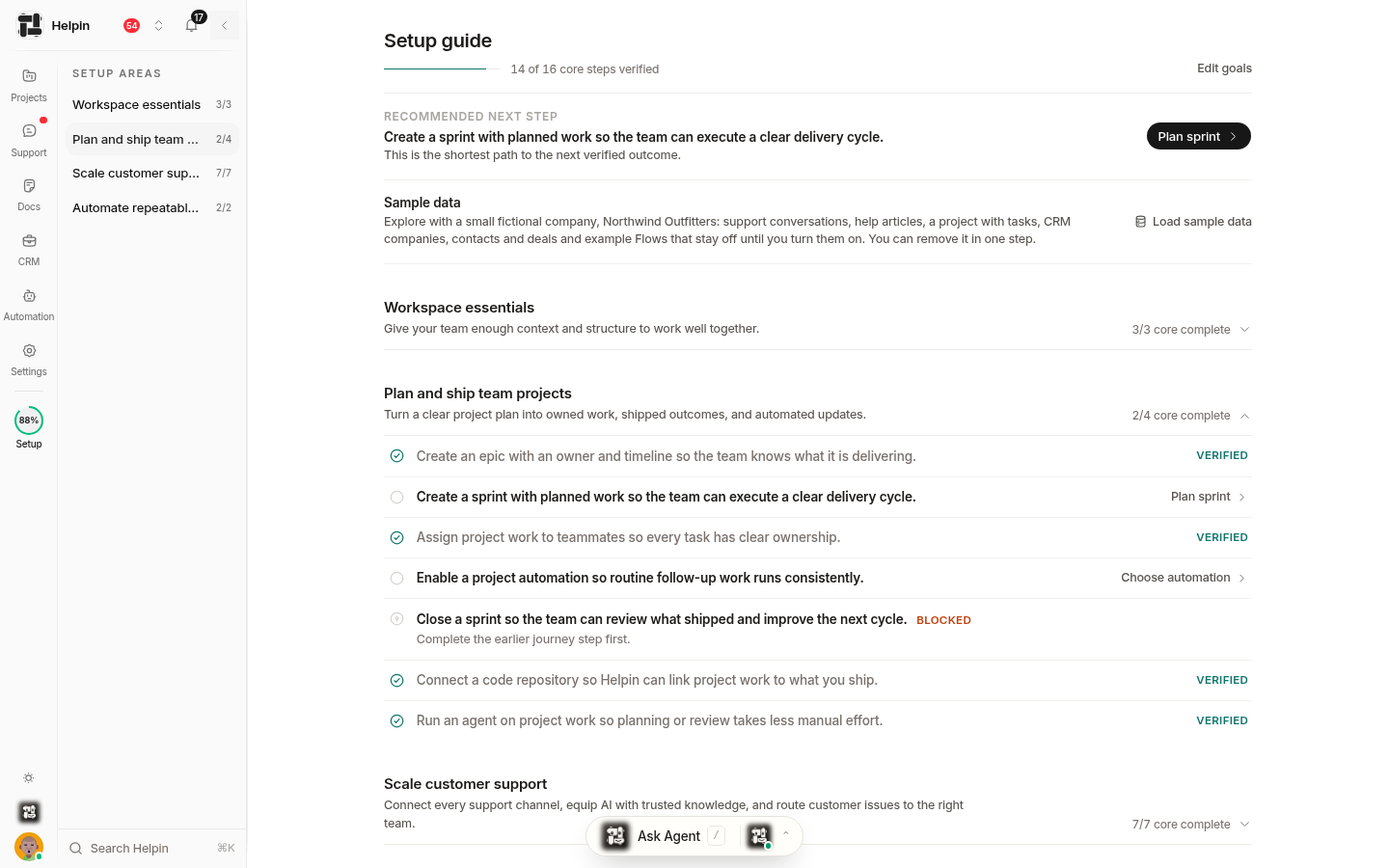
1. Create or select your workspace
A workspace holds your teams, members, settings, and product data. Start with Create your workspace.
Confirm the workspace name, timezone, and other general settings before inviting a large group.
2. Create teams
Create a team for each group that owns work together. Configure its handle, members, managers, workflow, labels, and planning defaults as needed.
Teams are useful even if you start with Docs or Support because they provide ownership and access boundaries across the product.
3. Invite people and assign access
Use Invite team members to:
Enter one or more email addresses.
Choose Admin, Member, or Viewer.
Select initial teams.
Send the invitations.
Grant CRM, Support, or Automation access where needed.
Projects and Docs are available to every workspace member.
4. Learn the navigation
Read Tour of the app to learn the sidebar, workspace search, Ask Agents, notifications, and settings areas.
5. Configure one module
Choose the workflow that will deliver value first:
Projects: Create a team workflow, add tasks, and review My Work.
Support: Create or select an inbox, install the chat widget, and configure Support email forwarding & routes if customers will email you.
CRM: Add or import customer records, configure pipelines, and connect related activity.
Docs: Create a space, organize collections, and publish only content intended for its audience.
Automation: Start with a built-in agent or a small flow whose result is easy to review.
6. Review controls before rollout
Before a wider launch:
Review Security overview.
Confirm roles, team membership, and optional module grants.
Review Plans, billing & usage, including AI usage and extra usage settings.
Verify support email and sending-domain configuration if you will contact customers.
Test one complete workflow with a small group.
Troubleshooting setup
If a person cannot see a module, check module access first. If they can open it but cannot complete an action, check their role, team membership, and the feature permission involved. If an AI action does not start, check plan access, AI usage, provider configuration, and approval requirements.
Was this article helpful?